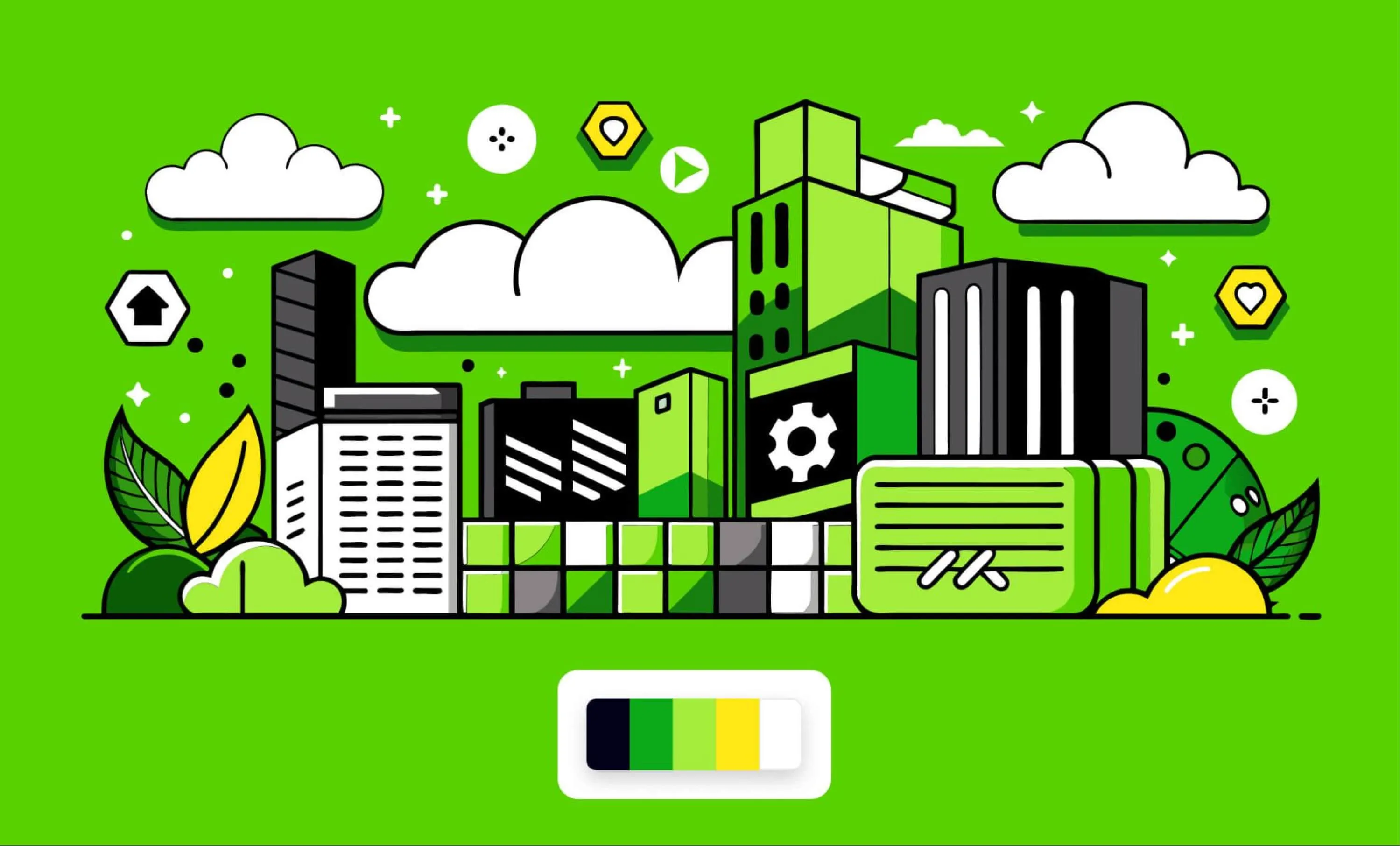
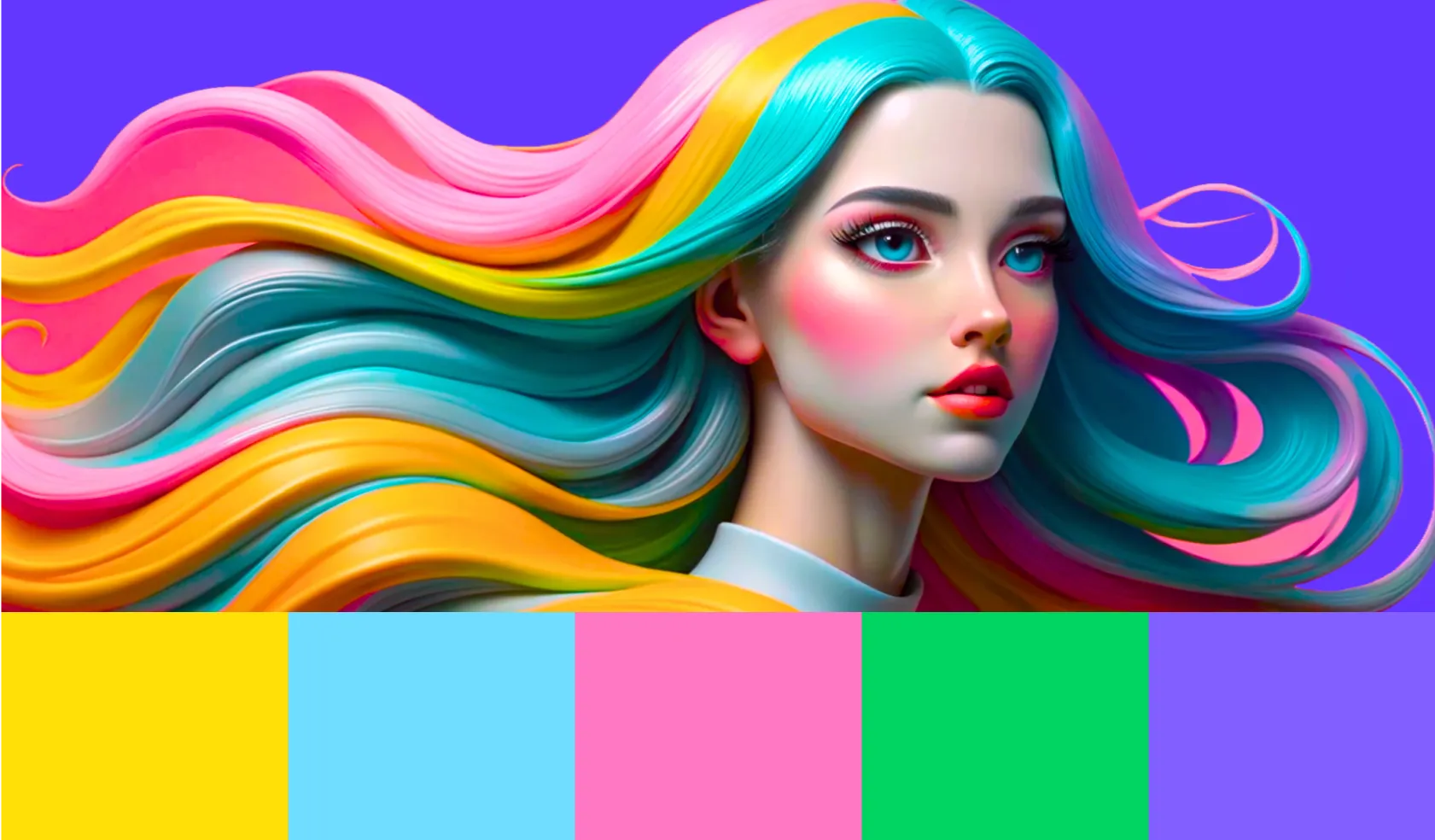
A three-step workflow, from a reference image to hex codes to a set of new images that stay inside the palette.
Short answerTo extract a color palette from an image, upload it to a palette generator, choose how many colors you need, and copy the hex codes. To apply it, save those hex codes as a palette in an AI image generator that accepts fixed colors, then generate new images in that palette. Five or six colors cover most brand work.
Key takeaways
Hex codes are the handoff. Copy them once, and the same palette works in Figma, in CSS, and in an AI image generator.
Recraft’s free color palette generator extracts three to eight colors from a PNG, JPG, or WebP in your browser, with no sign-up.
Five or six colors are enough for most brand palettes: one or two dominant colors, a neutral, and a couple of accents.
Extraction ranks colors by how much of the image they cover, so pick small accent colors by hand.
A palette saved in Recraft Studio applies to every image you generate while it is active, which keeps a set consistent.
Step 1: Extract a color palette from an image
Open Recraft’s free color palette generator from image and drop in a photo, an illustration, or a screenshot. You can also paste an image from the clipboard. It takes PNG, JPG, and WebP files up to 10 MB.
The palette is extracted in your browser, so the image is never uploaded. That matters when the reference is unreleased campaign work or a client file.
Choose how many colors you want, from three to eight. Each color comes with its hex and RGB codes. Click a color to copy its hex code, or use Copy all for the whole palette. Export gives you RGB values, CSS variables, and a Tailwind config.
If you only need the hex codes, most extractors will do the job, and Adobe Color and Coolors both handle it well. This workflow uses Recraft because the same palette then carries into image generation.
Step 2: Edit the palette before you use it
An extracted palette is a starting point. Recraft groups the pixels of the image into clusters of similar colors and returns one color for each cluster, ordered by how much of the image it covers. The result favors large areas. A small red accent in a mostly gray photo may not make the list.
Fix that by hand. Drag a dot on the image to the exact spot you want, and the palette picks up that color. Then check the set against three roles:
Dominant: one or two colors that carry the look
Neutral: a light or dark tone for backgrounds and text
Accent: one or two colors for emphasis
If two colors are close enough to do the same job, drop one. A palette of five or six colors is easier to apply than a palette of eight.
Step 3: Apply the color palette to new images with AI
Recraft’s image models focus on aesthetics and give you strong control over the result. Color is one of those controls, and there are two ways to use it.
For a single image, stay in the color palette generator. Select Generate in this palette, describe a poster, a pattern, an icon set, or a product scene, and Recraft generates it in those colors. Generating needs a free Recraft account. Extracting does not.
For ongoing work, save the palette in Recraft Studio. You can create a custom palette in three ways: add hex codes manually, sample colors from any image on the canvas with the eyedropper, or upload an image and let Recraft extract the dominant colors. Palettes are saved to your library, where you can edit, rename, or delete them.
The palette sets the colors. The prompt sets their jobs. Say which color goes where, such as “deep blue background, yellow accents on the buildings,” and the result lands closer to the layout you had in mind. For more on prompting with fixed colors, read how to generate AI images in specific brand colors.
How to keep a set of images in the same palette
One image in the right colors is easy. Ten that look like they belong together is the real test.
While a saved palette is active in Recraft Studio, every image you generate follows it. A small color indicator on the palette icon shows that it is on. You can move from a poster to an icon set to a pattern without entering the hex codes again.
Three habits keep a set together:
Keep one palette for each brand or campaign, and name it so you can find it later.
Name the background color in every prompt when the images have to sit on the same surface.
A palette controls color, not style. Two images in the same five colors can still look unrelated if one is a flat illustration and the other is a photograph. Decide on the style first, then apply the palette.
Extraction also has limits. It returns eight colors at most, so a complex illustration gets simplified. And because it ranks colors by coverage, backgrounds and skies come first. Check that the colors you care about made the list before you copy the codes.
How do I extract a color palette from one image and apply it to another using AI?
Extract the palette as hex codes, then generate the new image, or recolor an existing one, with those colors as a fixed palette. In Recraft, upload the first image to the free color palette generator, copy the colors, and save them as a palette in Recraft Studio. Every image you generate while that palette is active follows it.
Can generative AI help me create a color palette from a reference image and then apply it consistently across a set of designs?
Yes. Extract the palette from the reference image, save it, and generate each design with that palette active. In Recraft Studio, a saved palette stays in your library, so a poster, an icon set, and a pattern can all use the same colors without entering the hex codes again.
Which AI tools can generate images using a supplied color palette?
Recraft generates images from a palette you supply. You can enter hex codes manually, sample colors with the eyedropper, or upload a reference image and let Recraft extract the colors. Describing colors in a prompt works for a general mood. A fixed palette is the more reliable route when the colors have to match a brand guide.
Is it free to get a color palette from an image?
Yes. Extracting palettes and copying the color codes in Recraft’s color palette generator is free and unlimited, with no sign-up. Generating images in the palette needs a free Recraft account.